
Shared mailboxes are email accounts shared between different users.
Usually, shared mailboxes appear in Outlook about ten to fifteen minutes after your I.T. department grants you access to them.
If you're finding that this is not the case, try these steps below.
Please note that this is specifically for non-Office 365 Outlook email clients.
If the mailbox doesn't show up on its own, you can force Outlook to display it by diving into your account settings.
1. Open Account Settings
Open Outlook.
Click the File tab in the top-left corner.
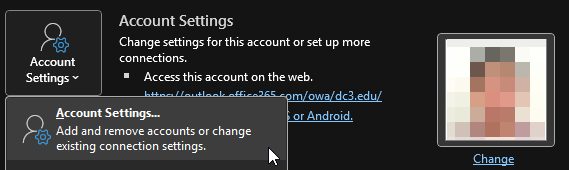
Click the Account Settings button, and then select Account Settings again from the dropdown menu.
2. Access Your Profile
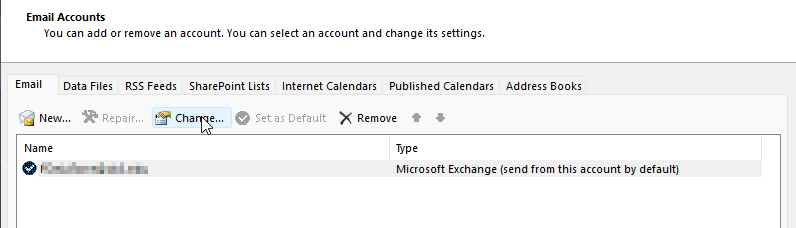
In the window that pops up, ensure the Email tab is selected.
Double-click on your primary email address (or highlight it and click Change).
3. Go to "More Settings"
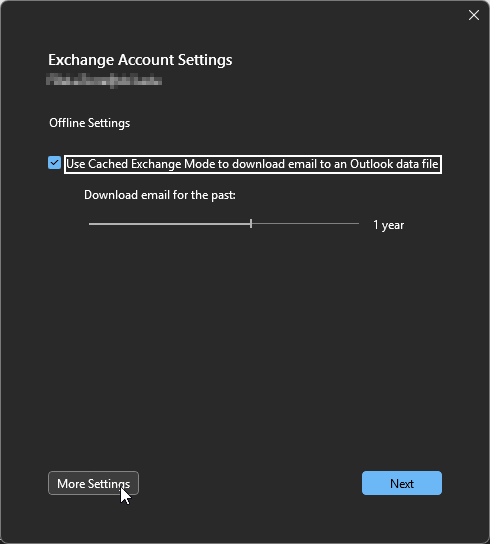
A new window will open showing your server settings. Look for the More Settings button in the bottom right corner and click it.
4. Add the Mailbox
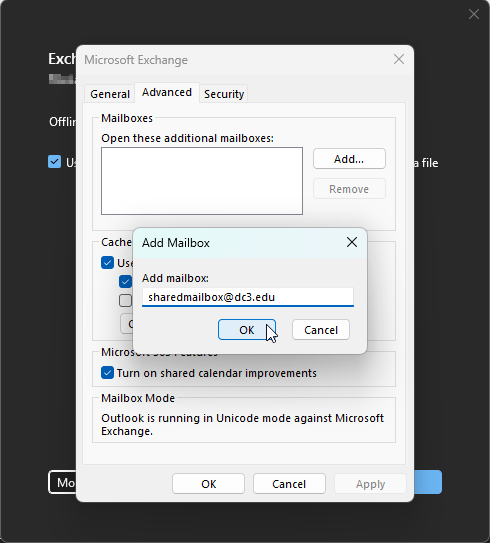
Click the Advanced tab.
Click the Add... button.
Type the email address or the display name of the shared mailbox.
Click OK.
5. Finish Up
Click OK to close the "More Settings" window.
Click Next, and then click Finish.
Close the Account Settings window.
The shared mailbox should now appear in your folder pane on the left, typically listed below your main inbox folders.
If you've gone through these steps and are still not seeing the account, please submit a ticket to I.T. so we can look into it. Be sure to include the email address that you're trying to add.